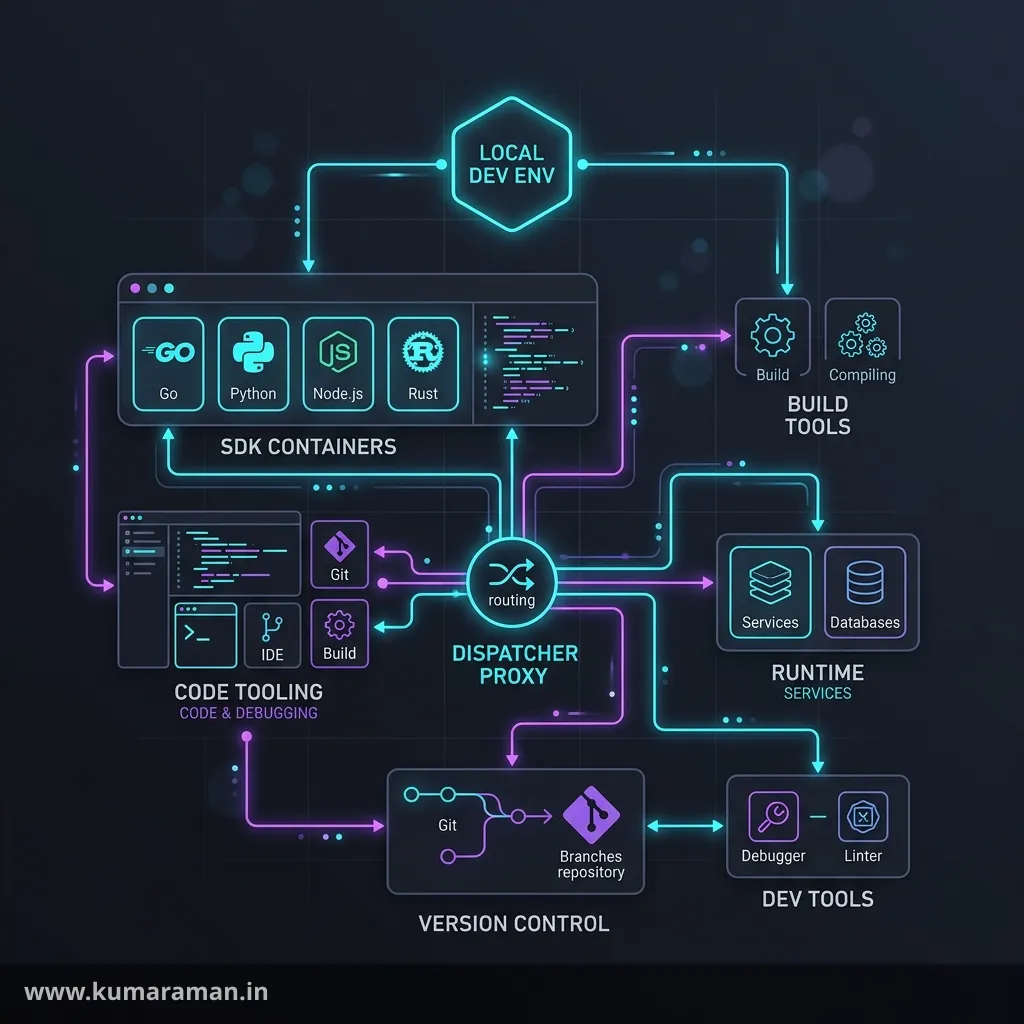
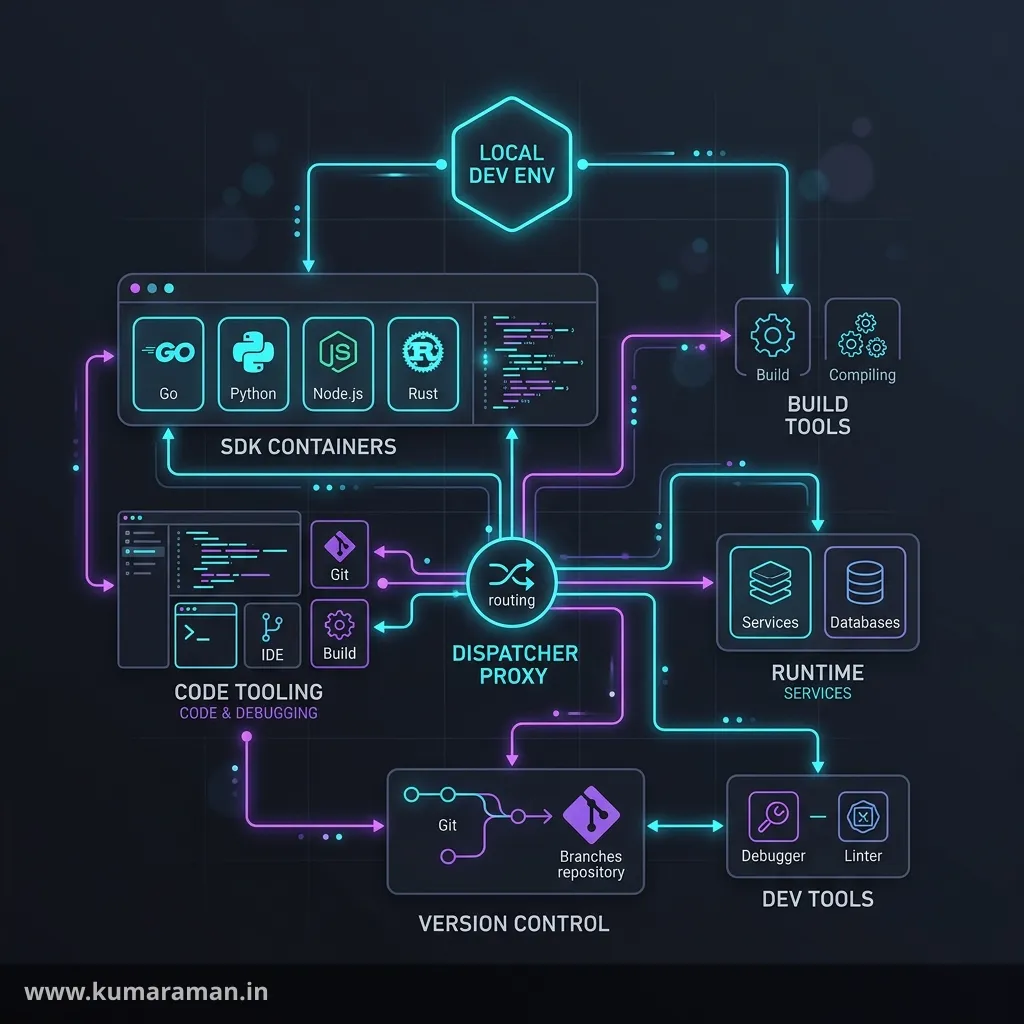
Every AEM developer's day starts in the same place: a local author on 4502, a local publish on 4503, a Dispatcher in Docker on 8080, and a Maven project that pushes code into all of them. When that setup is right, you change a line of HTL and see it in seconds; when it's wrong, you lose afternoons to the wrong JDK, a half-deployed package, or a Dispatcher container that can't find your publish instance.
This guide builds the whole environment from scratch and explains why each piece is there: prerequisites (including which Java version the current SDK needs), the AEM as a Cloud Service SDK, author and publish quickstarts, local replication, the Dispatcher SDK, the AEM Project Archetype and its deploy profiles, the front-end loop, IDE sync, remote debugging, RDE, and what changes on AEM 6.5. It ends with troubleshooting, a cheat sheet, best practices, and do's & don'ts.
It pairs with the AEM as a Cloud Service guide (Cloud Manager, pipelines, and the cloud side of RDE), the Dispatcher guide (what goes inside the config you'll be validating here), and the AEM Architecture guide (why author, publish, and Dispatcher exist at all). If you're heading from 6.5 to the cloud, the 6.5 to Cloud Service migration guide picks up where the 6.5 section below stops.
The shape of a local AEM environment
A local environment is a small copy of the production topology: your AEM project, a local AEM runtime (author and publish), and a local Dispatcher runtime in Docker.
| Piece | What it is | Default local address |
|---|---|---|
| AEM Author | Quickstart jar started as author | http://localhost:4502 |
| AEM Publish | Same quickstart jar, started as publish | http://localhost:4503 |
| Dispatcher | Apache + mod_dispatcher in a Docker container | http://localhost:8080 |
| AEM project | Maven multi-module project from the archetype | ~/code/<project> |
A folder layout that keeps things predictable (and matches Adobe's tutorials):
~/aem-sdk/
  author/       aem-author-p4502.jar  + crx-quickstart/ after first start
  publish/      aem-publish-p4503.jar + crx-quickstart/ after first start
  dispatcher/   the extracted Dispatcher Tools (bin/, src/, docs/)
~/code/
  mysite/       your archetype-generated project
Separate folders matter: each quickstart unpacks a crx-quickstart directory next to the jar, and that directory is the instance — repository, logs, config, and tier.
Prerequisites
| Tool | Version to use (Sept 2026) | Why you need it |
|---|---|---|
| JDK | Java 21 for current AEMaaCS SDKs; Java 11 only for old SDKs | Runs the quickstart and your Maven build |
| Maven | 3.9.x (archetype enforces 3.3.9+; Cloud Manager builds with 3.9.4) | Builds and deploys the project |
| Node.js + npm | Whatever your project's pom pins for the build; Node 20 for the aio CLI | ui.frontend scripts and the Adobe I/O CLI |
| Git | Any current version | Cloud Manager deploys from Git |
| Docker | Docker Desktop (macOS/Windows) or Docker Engine (Linux) | Runs the Dispatcher SDK and its validation |
Java: which version, really?
This is the most common setup mistake. Adobe's local-runtime tutorial says to install Oracle JDK 21, noting that only older SDKs need Java 11. A quickstart on the wrong JVM aborts immediately with Quickstart requires a Java Specification ... VM.
The build is more flexible: Cloud Manager ships Oracle JDK 11, 17, and 21, and you pick one with a .cloudmanager/java-version file containing 21 or 17 (21 is preferred). The archetype's enforcer rule only requires Java 11+.
Important: Run the quickstart on Java 21, and build locally with the same Java version Cloud Manager uses for your pipeline. If your repo has
.cloudmanager/java-versionset to21, build with 21 locally too — otherwise "works on my machine" bytecode and plugin issues show up for the first time in the pipeline.
Maven, Node, Git, Docker
- Maven — Cloud Manager builds with 3.9.4, so use a current 3.9.x. Maven 3.8.1+ blocks plain
http://repositories; move any old ones to HTTPS. - Node.js — archetype projects install an isolated Node and npm at build time via
frontend-maven-plugin(the current archetype pinsv16.17.0/ npm8.15.0). Keep your global Node close to that sonpm runmatches the Maven build. The Adobe I/O CLI asks for Node 20. - Docker — Adobe's stated minimum is Docker Desktop 2.2.0.5+ / Engine 19.03.9+; Windows needs an edition that supports Docker.
Verify quickly:
java --version
mvn -v
node -v && npm -v
git --version
docker version
Getting the AEM as a Cloud Service SDK
Download the SDK from the Software Distribution portal (experience.adobe.com/#/downloads) → AEM as a Cloud Service tab → sort by published date → latest AEM SDK. Access is limited to organizations that have AEM as a Cloud Service or Managed Services environments.
The zip (aem-sdk-<version>.zip) contains, or relates to, these artifacts:
| Artifact | What it's for | How you get it |
|---|---|---|
| Quickstart jar | The local AEM runtime (author or publish) | In the SDK zip |
| Dispatcher Tools | Validate and run Dispatcher locally; separate UNIX and Windows artifacts | In the SDK zip |
Java API jar (aem-sdk-api) | The compile-time API — formerly the "uber-jar" | Maven (Central) |
| Javadoc jar | Javadoc for the API jar | Maven / IDE |
The API jar is referenced in your pom as a provided dependency, and its version should match your production AEM version (visible in Cloud Manager, or under Help → About Adobe Experience Manager):
<dependency>
  <groupId>com.adobe.aem</groupId>
  <artifactId>aem-sdk-api</artifactId>
  <version>2026.9.28386.20260923T071724Z-260900</version>
  <scope>provided</scope>
</dependency>
That's a real version from Maven Central at the time of writing; the archetype sets it from sdkVersion (default latest).
Note: The Dispatcher Tools version is not the same as the AEM SDK version, and it changes less often. Always use the Dispatcher Tools bundled with the SDK that matches your cloud AEM version.
Running author and publish locally
Copy the quickstart jar into each folder, rename it, and start it from a terminal:
mkdir -p ~/aem-sdk/author ~/aem-sdk/publish
cp aem-sdk-quickstart-*.jar ~/aem-sdk/author/aem-author-p4502.jar
cp aem-sdk-quickstart-*.jar ~/aem-sdk/publish/aem-publish-p4503.jar

# terminal 1
cd ~/aem-sdk/author && java -jar aem-author-p4502.jar

# terminal 2
cd ~/aem-sdk/publish && java -jar aem-publish-p4503.jar
The first start takes several minutes while the jar unpacks and installs. You cannot start the AEMaaCS quickstart by double-clicking it — it shows an error dialog and refuses. Always use the command line. To stop an instance, press Ctrl-C in its terminal and wait for a clean shutdown.
The jar name is the configuration
On first start the filename pattern aem-<tier>_<environment>-p<port>.jar decides the tier, the environment run mode, and the port:
| Filename | Starts as |
|---|---|
aem-author-p4502.jar | Author, dev run mode, port 4502 |
aem-author_stage-p4502.jar | Author, stage run mode |
aem-author_prod-p4502.jar | Author, prod run mode |
aem-publish-p4503.jar | Publish, dev run mode, port 4503 |
aem-publish_prod-p4503.jar | Publish, prod run mode |
Run modes can also be passed with -r instead of renaming — for example, -r prerelease on first start enables the prerelease channel so you can build against next month's features:
java -jar aem-author-p4502.jar -r prereleaseThe tier is permanent — an author can't become a publish without deleting crx-quickstart. Environment and port can change between restarts, which makes a local stage or prod start a cheap check that your config.stage / config.prod folders resolve correctly.
First start and the admin password
Started from the command line, a new quickstart prompts for the admin password. Adobe's tutorial recommends simply using admin locally — the archetype's deploy profiles and integration tests default to admin/admin, so anything else means overriding sling.password, vault.password, and the it.*.password properties.
For scripted, non-interactive installs, AEM quickstarts since 6.3 support -nointeractive combined with a password file:
java -Dadmin.password.file=/path/to/passwordfile.properties -jar aem-author-p4502.jar -nointeractivewhere the file contains admin.password = yourpassword. With -nointeractive and no password file, the default password is used. The property is only read on the very first start. (This is documented for AEM 6.x quickstarts; Adobe's SDK tutorial only describes the interactive prompt, so test it on your SDK version before building automation on it.)
One more first-start flag worth knowing: if you use CryptoSupport (encrypted OSGi values, SMTP config, and so on), Adobe suggests starting a new local instance with -Dcom.adobe.granite.crypto.file.disable=true. That stores the crypto key under /etc/key in the repository, so you can package it once and install it into every fresh instance — keeping encrypted values portable across SDK upgrades.
Memory, forking, and JVM flags
JVM flags go before -jar, quickstart options go after it:
java -Xmx4g -jar aem-author-p4502.jar -noforkThe quickstart's built-in help explains why -nofork matters: when not running on a console, the quickstart may fork a second JVM, and that child uses its own default arguments (-forkargs, which default to -Xmx1024m ...) rather than the flags you passed. Running in a terminal normally doesn't fork, but when you launch from a script, IDE run configuration, or service wrapper, add -nofork so your heap and debug flags apply to the JVM actually running AEM. The 4g heap is my practical starting point, not an Adobe number.
If you use the unpacked start scripts (crx-quickstart/bin/start) on Java 21, note that they fail on the legacy -XX:MaxPermSize option. Adobe's fix: remove -XX:MaxPermSize=256M from the script, or set CQ_JVM_OPTS (for example -Xmx1024m -Djava.awt.headless=true) before starting.
Updating the SDK means a new instance
Adobe recommends updating the SDK at least monthly (on or shortly after the last Thursday, the feature-release cadence). Updating is not in-place:
- Commit code; export any content you need as a package.
- Stop the old instance and move its
crx-quickstartaside. - Drop the new jar into a clean folder, rename it, start it.
- Redeploy your project, then reinstall your local test-content package.
So keep local sample content in a dedicated content package in Git. For what lives inside crx-quickstart, see the JCR & Oak guide.
Local replication: author to publish
In the cloud, publishing goes through Sling Content Distribution and the Adobe pipeline — a microservice that doesn't exist locally. To simulate publishing on the SDK, you enable the legacy replication agent, which exists only on the local quickstart:
- On author, open
http://localhost:4502/etc/replication/agents.author.html. - Open Default Agent (publish) → Edit.
- Settings tab: check Enabled; leave Agent User Id empty.
- Transport tab: URI
http://localhost:4503/bin/receive?sling:authRequestLogin=1, useradmin, passwordadmin. - Save, then use Test Connection on the agent page.
Now Quick Publish on author lands content on http://localhost:4503. Remember it's a simulation: the cloud's distribution, preview tier, and CDN behaviour are not reproduced.
Tip: Deploy code to both tiers in one go with
mvn clean install -PautoInstallSinglePackage -PautoInstallSinglePackagePublish. Replication moves content; it doesn't deploy your/appscode to publish.
OSGi environment variables and secrets locally
If your OSGi configs use $[env:MY_VAR] or $[secret:my_secret] placeholders, the local quickstart doesn't read them from Cloud Manager. Instead:
-
Environment values come from OS environment variables set before starting AEM:
export MY_VAR=my_value java -jar aem-author-p4502.jar -
Secrets are read from files: one file per secret, named exactly like the placeholder with no extension, all in one directory. Point AEM at that directory with a Sling framework property in
crx-quickstart/conf/sling.properties:org.apache.felix.configadmin.plugin.interpolation.secretsdir=${sling.home}/secretsdir
It's a boot-time property, not a /system/console setting. The OSGi guide covers placeholders and run-mode folders.
The Dispatcher SDK
The pipeline rejects a broken Dispatcher config, and a subtly wrong filter only shows up at runtime — so validate and run it locally. The Dispatcher Tools give you a validator and a Docker image of the same Apache + Dispatcher stack.
Extract the tools
# macOS / Linux
chmod a+x aem-sdk-dispatcher-tools-x.x.x-unix.sh
./aem-sdk-dispatcher-tools-x.x.x-unix.sh
mv dispatcher-sdk-x.x.x ~/aem-sdk/dispatcher
On Windows, unzip the -windows.zip into a path with no spaces or special characters, or docker_run.cmd fails. You get bin/ (scripts), src/ (a baseline config), and docs/Config.html. Archetype projects already contain the baseline under dispatcher/src.
Validate
cd ~/aem-sdk/dispatcher
./bin/validate.sh ~/code/mysite/dispatcher/src
validate.sh (not to be confused with the validator binary it calls) runs three phases:
| Phase | What it checks | Needs |
|---|---|---|
| 1. Validator | Allowed directives, file structure, config rules | Nothing |
2. httpd -t | Apache can actually parse and start the config | Docker (AEM does not need to be running) |
| 3. Immutability check | You haven't modified Adobe's immutable files | Nothing |
Cloud Manager runs the same httpd -t check, so a local phase-2 failure is a pipeline failure caught early.
Run Dispatcher against your local publish
./bin/docker_run.sh ~/code/mysite/dispatcher/src host.docker.internal:4503 8080The arguments are the config src folder, the publish host:port as seen from inside the container (host.docker.internal is Docker's DNS name for your machine), and the local port. Your site is now at http://localhost:8080.
On macOS and Linux, prefer the hot-reload variant:
./bin/docker_run_hot_reload.sh ~/code/mysite/dispatcher/src host.docker.internal:4503 8080It re-validates and reloads Apache on every config change. It isn't available on Windows, where you use bin\docker_run src host.docker.internal:4503 8080.
Debug knobs
These are environment variables prefixed to the run command:
| Variable | Effect | Default |
|---|---|---|
DISP_LOG_LEVEL | Dispatcher module log level (Debug is what you usually want locally) | Warn |
REWRITE_LOG_LEVEL | mod_rewrite log level; Adobe's global.vars comments suggest trace2 for debugging rewrites locally | Warn |
DISP_RUN_MODE | Simulates the environment: dev, stage, or prod | dev |
ENV_FILE | Path to a file of custom environment variables to inject | — |
DISP_LOG_LEVEL=Debug REWRITE_LOG_LEVEL=Debug \
  ./bin/docker_run_hot_reload.sh ~/code/mysite/dispatcher/src host.docker.internal:4503 8080

# simulate stage-specific config
DISP_RUN_MODE=stage ./bin/docker_run.sh ~/code/mysite/dispatcher/src host.docker.internal:4503 8080
Run ./bin/docker_run.sh with no arguments to list every option. In the cloud, Debug is the maximum level — don't commit trace.
Logs and cache inside the container
Logs stream to your terminal, but the full files live in the container at /etc/httpd/logs (dispatcher.log, httpd_access.log, httpd_error.log), and the cache docroot is at /mnt/var/www/html:
docker ps                                   # find the dispatcher-publish container
docker exec -it <container-id> /bin/sh      # then: cd /mnt/var/www/html
docker cp -L <container-id>:/etc/httpd/logs ./logs
docker exec <container-id> httpd-test       # dump the effective dispatcher.any
Every container restart wipes logs and cache.
Try it as you read: Before round-tripping through Docker, paste your filters and cache rules into the Dispatcher Tester to check which URLs are allowed, denied, or cached — it runs in your browser.
Keeping the immutable files current
When phase 3 fails after an SDK update with immutable file ... has been changed, update your project's copies:
./bin/update_maven.sh ~/code/mysite/dispatcher/src
./bin/validate.sh ~/code/mysite/dispatcher/src
It also updates the immutability checks in the parent pom.xml. Review the diff, then commit.
Generating a project with the AEM Project Archetype
The AEM Project Archetype generates Adobe's best-practice multi-module project. The current release is 58 (September 2026):
mvn -B org.apache.maven.plugins:maven-archetype-plugin:3.3.1:generate \
  -D archetypeGroupId=com.adobe.aem \
  -D archetypeArtifactId=aem-project-archetype \
  -D archetypeVersion=58 \
  -D appTitle="My Site" \
  -D appId="mysite" \
  -D groupId="com.mysite" \
  -D aemVersion=cloud
Use maven-archetype-plugin 3.3.1+ and keep -B; interactive mode makes defaulted properties awkward to change.
| Property | Default | What it does |
|---|---|---|
appTitle | — | Site title and component group name |
appId | — | Technical name: artifactId, /apps, /conf, /content folders, clientlib names |
groupId | — | Maven groupId and Java package |
aemVersion | cloud | cloud for AEMaaCS, or 6.5.8 for AMS / on-prem 6.5 |
sdkVersion | latest | AEMaaCS SDK API version (cloud only) |
frontendModule | general | general (Webpack + TypeScript + Sass) or none |
includeDispatcherConfig | y | Generate cloud or AMS Dispatcher config to match aemVersion |
includeExamples | n | Add the Component Library example site |
datalayer | y | Adobe Client Data Layer integration |
With aemVersion=cloud, Core Components aren't added because AEMaaCS ships them. The archetype is a one-time template: keeping dependencies current afterward is your project's job.
Note: On Windows, generating the Dispatcher config needs an elevated prompt or WSL, because it creates symbolic links (
enabled_vhosts,enabled_farms).
For a ready-made reference project, clone WKND.
The Maven modules
| Module | Contains | Deployed as |
|---|---|---|
core | Java: Sling Models, services, servlets, filters, schedulers | OSGi bundle |
ui.apps | /apps: components, templates, clientlibs, HTL | Immutable content package |
ui.apps.structure | Declares the repository roots your packages may write to | Used for build-time validation |
ui.config | Run-mode-specific OSGi configurations | Content package |
ui.content | Mutable content: /content, /conf, sample pages, templates' policies | Mutable content package |
ui.frontend | Webpack build that produces clientlibs into ui.apps | Built into ui.apps |
all | Embeds every package and bundle (plus vendor packages) into one | The single deployable package |
dispatcher | Apache + Dispatcher config (conf.d, conf.dispatcher.d) | Dispatcher config artifact |
it.tests | Java HTTP integration tests (AEM Testing Clients) | Run against a live instance |
ui.tests | Cypress UI tests | Run against a live instance |
The ui.apps (immutable) vs ui.content (mutable) split is enforced by AEMaaCS at deploy time — mixing them fails. The AEM analyser runs during mvn clean install (in the all module) and catches problems like missing imports before Cloud Manager does. The Package Filter Builder helps you get filter.xml roots right; the Backend and Component Development guides cover the code itself.
Building and deploying: the profiles
The generated pom defines profiles that build and install into your running instances via the Package Manager and Web Console HTTP APIs:
| Command | Deploys | Target |
|---|---|---|
mvn clean install | Nothing — build, unit tests, analyser | — |
mvn clean install -PautoInstallSinglePackage | The all package | Author (aem.host:aem.port, default localhost:4502) |
mvn clean install -PautoInstallSinglePackagePublish | The all package | Publish (localhost:4503) |
mvn clean install -PautoInstallBundle | Just the core bundle (run inside core) | Author, via /system/console |
mvn clean install -PautoInstallPackage | One content package (run inside e.g. ui.apps) | Author |
mvn clean install -PautoInstallPackagePublish | One content package | Publish |
Typical loops:
# first deploy, or after pulling others' changes: everything, both tiers
mvn clean install -PautoInstallSinglePackage -PautoInstallSinglePackagePublish

# Java-only change: redeploy the bundle in seconds
cd core && mvn clean install -PautoInstallBundle

# HTL / dialog change: redeploy just ui.apps
cd ui.apps && mvn clean install -PautoInstallPackage

# skip tests while iterating (not in CI)
mvn clean install -PautoInstallSinglePackage -DskipTests
Host, port, and credentials are Maven properties (aem.host, aem.port, aem.publish.port, sling.password, vault.password, …) you can override with -D. Integration tests run with mvn clean verify -Plocal.
Tip:
autoInstallBundleis the fastest Java loop, but it only refreshes the bundle. If you changed a dialog, an OSGi config, or anything under/apps, deploy the relevant package too — a bundle-only deploy won't pick those up.
The fast front-end loop
ui.frontend compiles TypeScript and Sass with Webpack, and aem-clientlib-generator writes the output into ui.apps as clientlibs. Maven runs npm run prod (or npm run dev with the fedDev profile); for day-to-day styling, skip Maven and use the npm scripts:
| Script | What it does |
|---|---|
npm run dev | Development Webpack build + clientlib generation |
npm run prod | Production build (minified, no source maps) + clientlib generation |
npm run start | Webpack dev server with a static index.html and a proxy to localhost:4502 for /content and /etc.clientlibs |
npm run sync | One-off aemsync push of ui.apps content to AEM |
npm run watch | Runs start, a chokidar watcher that regenerates clientlibs, and aemsync watching ui.apps, in parallel |
npm run watch is the "save and see it in AEM" loop: Webpack rebuilds, the clientlib is regenerated into ui.apps, and aemsync pushes the changed files to http://localhost:4502 as a tiny package. Two things to know before you rely on it:
-
Make the dev server write to disk. The
watchchain relies on files landing indist/, but the dev server keeps output in memory by default. Adobe's WKND tutorial fixes this by adding--env writeToDisk=trueto thestartscript:"start": "webpack-dev-server --open --config ./webpack.dev.js --env writeToDisk=true" -
Check
npm-run-allis installed. Thewatchscript callsnpm-run-all. WKND lists it indevDependencies, but the current archetype template'spackage.jsondoesn't — ifnpm run watchsays the command isn't found, add it withnpm install --save-dev npm-run-all.
Run npm ci in ui.frontend first. The Frontend Integration guide covers clientlibs in depth.
Note: The Webpack dev server opens on
localhost:8080or the next available port — so if Dispatcher is already on 8080, the dev server quietly moves to 8081. If you start the dev server first, start Dispatcher on a different port (the last argument todocker_run.sh).
IDE setup and content sync
Any Maven-aware IDE handles the Java: import the root pom.xml and use the same JDK as Maven. The AEM-specific part is syncing jcr_root files to a running instance without a Maven deploy.
| IDE | Adobe-referenced tooling | Notes |
|---|---|---|
| IntelliJ IDEA (Community is enough) | The Repo tool, wired up as External Tools with keyboard shortcuts | Push/pull the current file or folder |
| VS Code | Repo via tasks.json, or the AEM Sync extension | Ideal for HTL, JS, CSS work |
| Eclipse | AEM Developer Tools plug-in | GUI content sync with a local instance |
The Repo tool is a small bash script (like vlt, but simpler) that builds a single-filter package for a path and pushes or pulls it through the Package Manager API:
brew tap adobe-marketing-cloud/brews
brew install adobe-marketing-cloud/brews/repo

repo put -f ui.apps/src/main/content/jcr_root/apps/mysite/components/hero   # push
repo get -f ui.apps/src/main/content/jcr_root/apps/mysite/components/hero   # pull
repo st  ui.apps/src/main/content/jcr_root/apps/mysite/components/hero      # status
repo diff ui.apps/src/main/content/jcr_root/apps/mysite/components/hero     # diff
It overwrites the whole path you point it at — repo get is how a dialog edited in CRXDE gets back into Git.
Important: Whatever you change in CRXDE Lite has to make it back into Git — otherwise it disappears with your next SDK update and never reaches the cloud. Treat the local repository as disposable and the project as the source of truth.
Remote debugging
Start the quickstart with the JDWP agent and attach your IDE's "Remote JVM Debug" configuration to the port:
java -agentlib:jdwp=transport=dt_socket,server=y,suspend=n,address=*:5005 \
  -jar aem-author-p4502.jar
suspend=n boots without waiting for a debugger; address=*:5005 listens on all interfaces (use localhost:5005 to keep it private). Give publish a different port if you debug both.
The 6.x quickstart's -debug <port> option forces forking, so the explicit -agentlib flag is more predictable. If breakpoints don't bind, redeploy with autoInstallBundle so the bundle matches your source.
Local consoles you'll live in
| Console | URL | Use it for |
|---|---|---|
| Web Console — Bundles | /system/console/bundles | Is my bundle Active? Unsatisfied imports? |
| Web Console — Components | /system/console/components | Component state, unsatisfied references, PIDs for configs |
| Web Console — Configuration | /system/console/configMgr | Inspect effective OSGi configs |
| Sling Models status | /system/console/status-slingmodels | Is the model registered for the right resource type? |
| CRXDE Lite | /crx/de/index.jsp | Browse nodes, test access control |
| Package Manager | /crx/packmgr | Install, build, and download packages |
| QueryBuilder debugger | /libs/cq/search/content/querydebug.html | Test QueryBuilder queries |
| Explain Query | Tools → Diagnosis → Query Performance | Check index usage |
And the log you'll tail most:
tail -f ~/aem-sdk/author/crx-quickstart/logs/error.logIn cloud environments most of these are replaced by the Developer Console and Cloud Manager logs — one more reason to debug locally. See the Performance & Troubleshooting guide for deeper diagnostics.
RDE: the cloud-side inner loop
The local SDK isn't the cloud: there's no Adobe pipeline, no CDN, no asset microservices, and Adobe notes that not every AEMaaCS feature is in the quickstart. When you need real cloud behaviour without waiting for a pipeline, use a Rapid Development Environment (RDE) — every program gets one, and you deploy to it from your laptop with the Adobe I/O CLI:
npm install -g @adobe/aio-cli                       # Node 20
aio plugins:install @adobe/aio-cli-plugin-aem-rde
aio login
aio aem:rde:setup                                   # pick org, program, environment

aio aem:rde:install all/target/mysite.all-1.0.0-SNAPSHOT.zip
aio aem:rde:install dispatcher/target/mysite.dispatcher.cloud-1.0.0-SNAPSHOT.zip
aio aem:rde:install -t env-config ./config          # environment config folder
aio aem:rde:status
aio aem:rde:logs --target=author
aio aem:rde:reset                                   # back to a clean, latest-version RDE
RDE is for development and debugging, not load or QA, and its code skips the quality gates. Adobe's flow: validate locally, iterate on RDE, then run the branch through a Cloud Manager dev pipeline. See the Cloud Service guide for the pipeline side.
AEM 6.5 local setup: what's different
On AMS or on-prem 6.5, the archetype, profiles, consoles, and debugging are the same. The differences:
| Area | AEM as a Cloud Service SDK | AEM 6.5 |
|---|---|---|
| Java | Java 21 (current SDKs) | Java 8 or 11 for 6.5; Java 17 or 21 for 6.5 LTS |
| The jar | aem-sdk-quickstart-*.jar, renamed aem-author-p4502.jar | cq-quickstart-6.5.0.jar, renamed cq-author-p4502.jar / cq-publish-p4503.jar |
| Licence | None needed | license.properties next to the jar, or enter a key on the welcome screen |
| Starting | Command line only | Command line or double-click |
| Updates | Replace the whole instance with a new SDK | Install service packs (and hotfixes) via Package Manager, matching production's level |
| Run modes | author/publish + dev/stage/prod (+ prerelease) | Any custom run modes via -r or sling.run.modes |
| Replication | Enable the legacy agent to simulate | Default agent to localhost:4503 is configured after install |
| API dependency | com.adobe.aem:aem-sdk-api | com.adobe.aem:uber-jar (archetype aemVersion=6.5.8) |
| Core Components | Built in | Embedded by your project |
| Dispatcher config | Cloud format, validated with the Dispatcher SDK | Classic AMS config (dispatcher.ams in the archetype) |
A typical 6.5 start:
cp cq-quickstart-6.5.0.jar cq-author-p4502.jar
java -Xmx2g -jar cq-author-p4502.jar -nofork
Then install production's service pack via /crx/packmgr — a different SP locally is a reliable source of "worked locally" bugs. The current archetype requires 6.5.17.0+.
Troubleshooting common setup errors
"Quickstart requires a Java Specification ... VM"
Current SDKs need Java 21. Check what's actually on your PATH with java --version — a terminal opened before you changed JAVA_HOME still has the old value.
The build fails but AEM runs fine (or vice versa)
Maven may use a different JDK than your terminal — mvn -v shows the truth. Moving builds to Java 17/21 also needs minimum plugin versions, e.g. bnd-maven-plugin 6.4.0, aemanalyser-maven-plugin 1.6.16+, maven-bundle-plugin 5.1.5+.
Port already in use
4502, 4503, 8080, and 5005 are all popular. Find the culprit:
lsof -i :4502          # macOS / Linux
netstat -ano | findstr :4502   # Windows
Often it's a stale AEM java process that didn't shut down cleanly. For Dispatcher, just change the last argument to docker_run.sh.
OutOfMemoryError or a crawling instance
Look for OutOfMemoryError in error.log. Raise -Xmx, and add -nofork when launching from a script or IDE so the flag isn't lost to a forked child. Author, publish, Docker, an IDE, and a browser together are heavy — on smaller laptops, run publish only when you need it.
Start scripts fail on Java 21
crx-quickstart/bin/start still passes -XX:MaxPermSize, which modern JVMs reject. Remove it from the script or set CQ_JVM_OPTS before starting.
Dispatcher: "Waiting until host.docker.internal is available"
The container can't resolve or reach the host. Adobe's fixes: make sure Docker is 18.03 or newer, and if the name still doesn't resolve on your machine, pass your host's IP address instead of host.docker.internal:
./bin/docker_run_hot_reload.sh ~/code/mysite/dispatcher/src 192.168.1.20:4503 8080This comes up most on Linux with plain Docker Engine, where host.docker.internal isn't provided the way Docker Desktop provides it. Using the host IP also means the publish instance must be reachable on that interface — the quickstart listens on all interfaces unless you bound it with -a — and a host firewall mustn't block the Docker bridge from reaching port 4503.
Dispatcher returns 404 or 403 for pages that work on 4503
Usually your config doing its job: a filter denying the path, or no vhost/farm matching the Host header. Run with DISP_LOG_LEVEL=Debug to see which rule matched; the Dispatcher guide's troubleshooting section walks through it.
Deploy succeeds but nothing changes
A bundle stuck in Installed (not Active) in /system/console/bundles usually has an unsatisfied import. Also confirm you deployed to the tier you're viewing — autoInstallSinglePackage targets author only.
Cheat sheet
| Task | Command / location |
|---|---|
| Start author | java -jar aem-author-p4502.jar |
| Start publish | java -jar aem-publish-p4503.jar |
| Prerelease features | -r prerelease on first start |
| Heap + no fork | java -Xmx4g -jar aem-author-p4502.jar -nofork |
| Non-interactive admin password | -Dadmin.password.file=... -jar ... -nointeractive |
| Remote debug | java -agentlib:jdwp=transport=dt_socket,server=y,suspend=n,address=*:5005 -jar ... |
| Enable local replication | /etc/replication/agents.author.html → Default Agent (publish) |
| Validate Dispatcher | ./bin/validate.sh <project>/dispatcher/src |
| Run Dispatcher | ./bin/docker_run.sh <src> host.docker.internal:4503 8080 |
| Run Dispatcher with hot reload | ./bin/docker_run_hot_reload.sh <src> host.docker.internal:4503 8080 |
| Dispatcher debug logs | DISP_LOG_LEVEL=Debug REWRITE_LOG_LEVEL=Debug ./bin/docker_run... |
| Update immutable files | ./bin/update_maven.sh <src> |
| Generate project | mvn -B ...maven-archetype-plugin:3.3.1:generate -D archetypeVersion=58 ... |
| Deploy everything to author | mvn clean install -PautoInstallSinglePackage |
| Deploy everything to publish | mvn clean install -PautoInstallSinglePackagePublish |
| Deploy only the bundle | cd core && mvn clean install -PautoInstallBundle |
| Deploy one package | cd ui.apps && mvn clean install -PautoInstallPackage |
| Front-end watch | cd ui.frontend && npm run watch |
| Deploy to RDE | aio aem:rde:install <artifact> |
| Tail the log | tail -f crx-quickstart/logs/error.log |
Best practices
- ✅ Run the quickstart on Java 21 and build with the same Java version as your Cloud Manager pipeline.
- ✅ Keep author, publish, and Dispatcher Tools in separate folders, with the jar name encoding tier and port.
- ✅ Match your local SDK version to production and update at least monthly — as a fresh instance, not in place.
- ✅ Keep local sample content in a dedicated package in Git so rebuilding an instance takes minutes.
- ✅ Validate Dispatcher config locally (all three phases) before every commit that touches it.
- ✅ Use the narrowest deploy that fits the change:
autoInstallBundlefor Java,autoInstallPackagefor one package, the fullallpackage when in doubt. - ✅ Use RDE when you need true cloud behaviour, and the local SDK for everything else.
Do's and Don'ts
Do
- ✅ Start the AEMaaCS quickstart from the command line and wait for the first install to finish.
- ✅ Use
admin/adminlocally so the archetype's defaults just work. - ✅ Start with
-Dcom.adobe.granite.crypto.file.disable=trueif you rely on encrypted OSGi values. - ✅ Add
-noforkwhen launching from scripts or IDEs so your JVM flags stick. - ✅ Pull CRXDE experiments back into Git with
repo getbefore you forget them.
Don't
- ❌ Don't run two quickstarts from the same folder — they share one
crx-quickstart. - ❌ Don't try to switch an existing instance between author and publish — start a new one.
- ❌ Don't upgrade the SDK by swapping the jar under an existing
crx-quickstart. - ❌ Don't edit the Dispatcher SDK's immutable files — they're replaced in the cloud anyway.
- ❌ Don't treat local replication as proof of cloud publishing behaviour — it's a simulation.
- ❌ Don't let the local repository become the only copy of anything.
Wrapping up
A good local AEM setup is a faithful, disposable copy of production: the SDK quickstart on Java 21 running author and publish, local replication simulating distribution, the Dispatcher SDK serving your real Apache config in Docker, and an archetype project whose Maven profiles deploy into all of it. Add the front-end watch loop, IDE sync, and remote debugging for speed, and RDE when only real cloud behaviour will do. Most setup failures are a mismatch of Java versions, SDK versions, tiers, or ports — and now you know where to look.
Continue with the AEM as a Cloud Service guide for pipelines and quality gates, the Dispatcher guide for writing the config you're now validating, the Unit Testing guide to test core without a running instance, and the AEM Developer Cheat Sheet for the commands you'll reach for every day.
Discussion
Loading discussion…
Try a related tool
Subscribe to the Newsletter
Get the latest articles, tutorials, and tech insights delivered straight to your inbox. No spam, unsubscribe anytime.